HubSpot Setup Guide
Tulu integrates your ad-platform spend with HubSpot contacts and forms, which lets you:
See which campaigns actually drive leads and what each lead costs—measured against your CRM, not ad-platform estimates.
Attribute every form submission to the campaign that created it—Tulu adds UTM tracking to your HubSpot forms and writes the source onto each new contact automatically.
Permissions required
You must be either a Super Admin or have App Marketplace Access permissions to connect Tulu to HubSpot.
Install the Tulu app
Create your Tulu account at www.alltulu.com. During onboarding, Tulu asks you to connect your data sources—select HubSpot.
Already using Tulu? Go to Settings → Sources → Connect Data Sources and select HubSpot.
On the Connecting your Tulu account to HubSpot screen, choose Sign in to your HubSpot account—or Create a new HubSpot account if you don’t have one yet.

The Tulu–HubSpot connect screen
Sign in. On the Choose an account screen, select the HubSpot account you want to connect and click Choose Account.
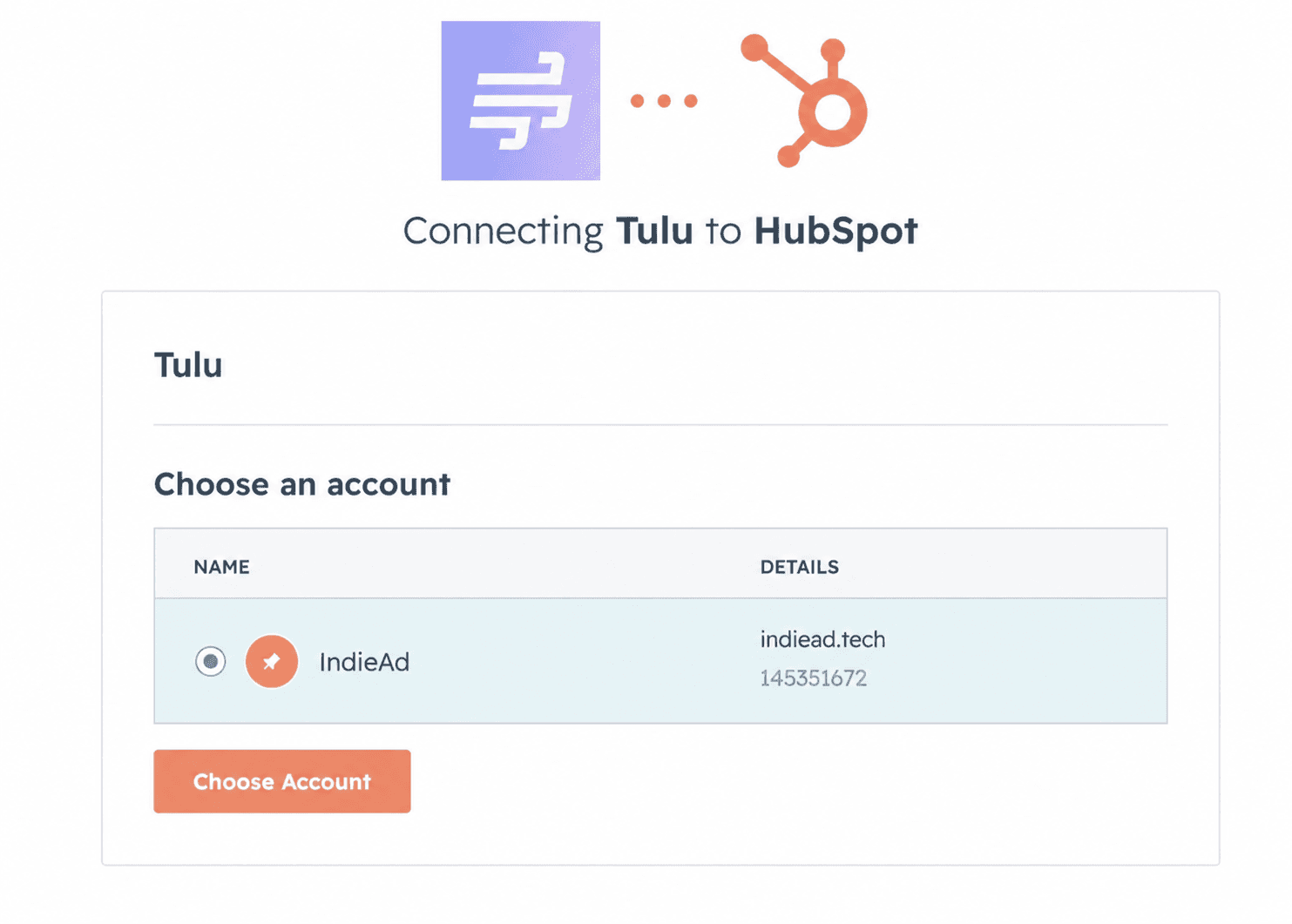
Choose which HubSpot account to connect
Review the requested scopes on this screen. Tulu requests access to read and write contacts and companies, read and edit contact and company properties, read deals and products, read and write tickets, access your forms, and view basic account information.

Review and approve the requested permissions
Click Connect app. You’ll return to Tulu with HubSpot connected, and setup continues.
After you connect
No configuration is needed.
Tulu automatically detects your HubSpot forms and begins matching your lead data against your connected ad accounts. Your reconciled data can take up to 24 hours to appear—Tulu notifies you when your account is ready.
From then on, Tulu works automatically: it keeps your HubSpot lead and attribution data joined with the spend from your connected ad accounts on an ongoing basis—no manual syncing, exports, or maintenance. To see the results, open your Tulu dashboard: cost per lead, campaign performance, and lead sources, all measured against your CRM.
Disconnect Tulu from HubSpot
In Tulu, go to Settings → Sources → HubSpot → Disconnect.
Tulu stops reading from and writing to your HubSpot account. The UTM properties Tulu created remain on your records—your historical attribution data is not deleted.
To uninstall Tulu from your HubSpot account instead, follow the instructions in this HubSpot Knowledge Base article. Uninstalling revokes all permissions and stops all data flow; the UTM properties Tulu created remain on your HubSpot records.
Questions?
Email us at support@alltulu.com.